User guide for courses
This guide is for people running a course in DiscRetur. If you have lost a disc and are looking for your own, the guide for players is the one you want.
Roles
| Role | Can |
|---|---|
| Moderator | Work the disc queue: register, edit, notify, change status, archive |
| Course admin | Everything a moderator can, plus course settings and members |
In short: moderators handle discs, course admins own the course. A moderator sees neither Settings nor Members in the menu.
If you run more than one course, switch course at the top of the sidebar. The dashboard and settings always apply to the selected course.
Registering a found disc
Go to Register disc.
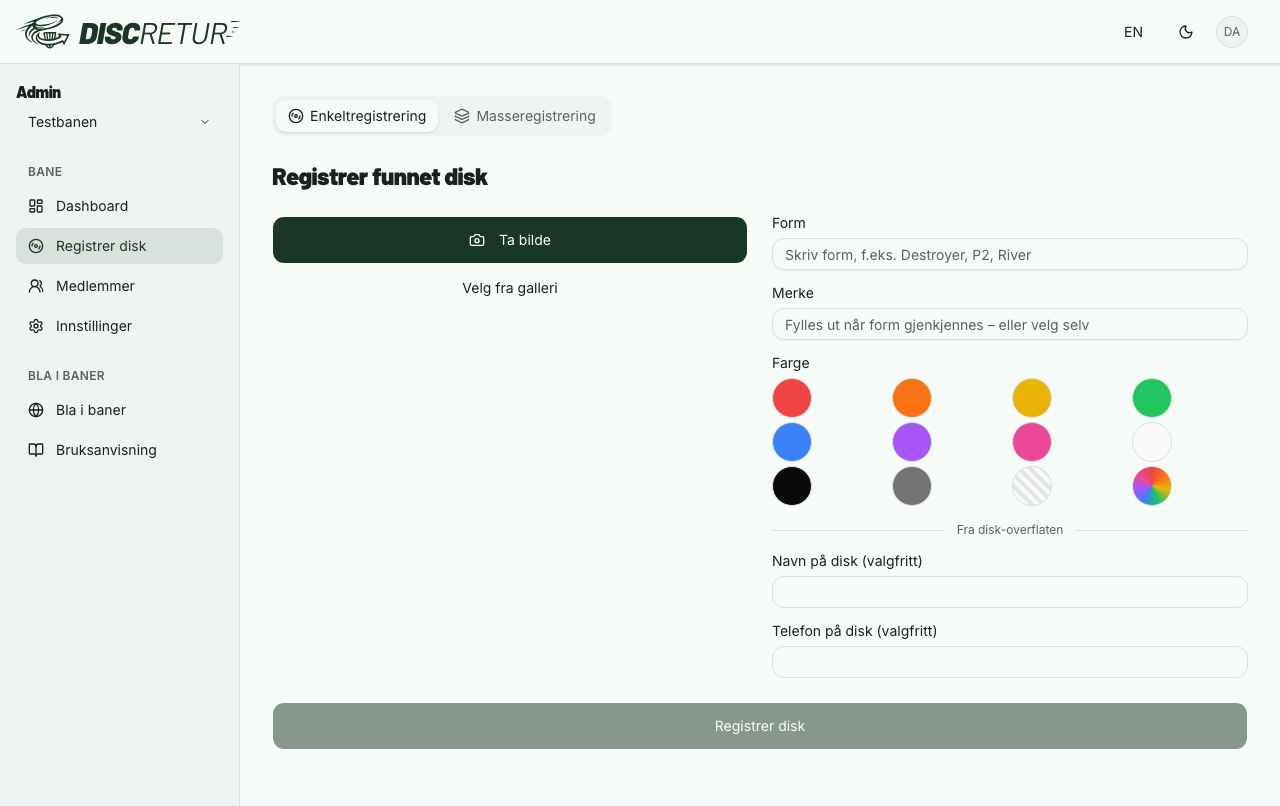
- Photo is required. It's used both in the notification to the owner and when someone searches the public list.
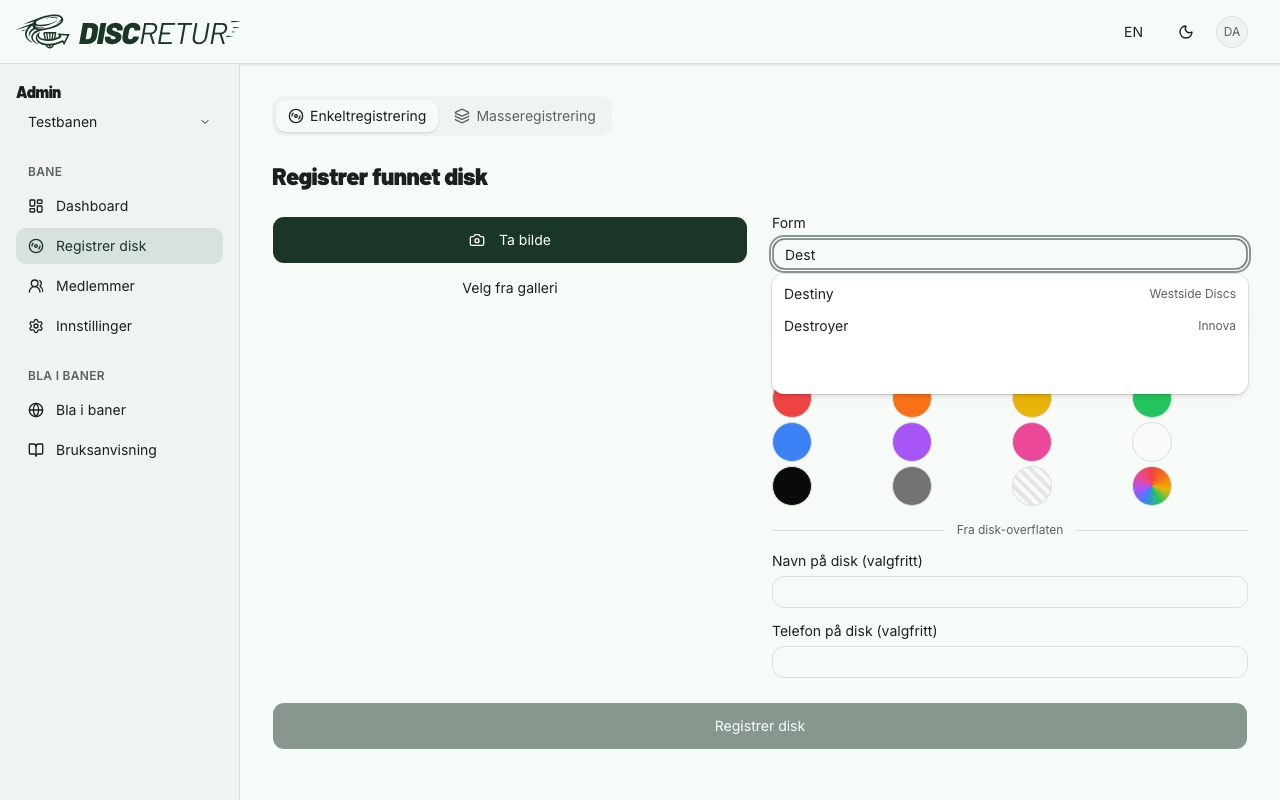
- Mold — start typing and pick from the list. That fills in the brand automatically and shows the flight numbers. If the mold isn't listed, type it freely and choose the brand yourself.
- Colour comes from the colour picker.
- Name and phone — fill these in if anything is written on the disc. This is what we match against registered users.
If the phone number matches exactly one user, the notification goes out automatically. If several people could be the owner, you get a candidate list and choose who to notify.
If the course has SMS on, the SMS goes to the number on the disc independently of this — it does not wait for the number to match an account.
Bulk mode (desktop, at the top of the register page) lets you upload several photos at once and fill in the details in a table. Useful after a clear-out. Photos upload four at a time and the rows come back in the order you dropped them, so photo and disc stay together.
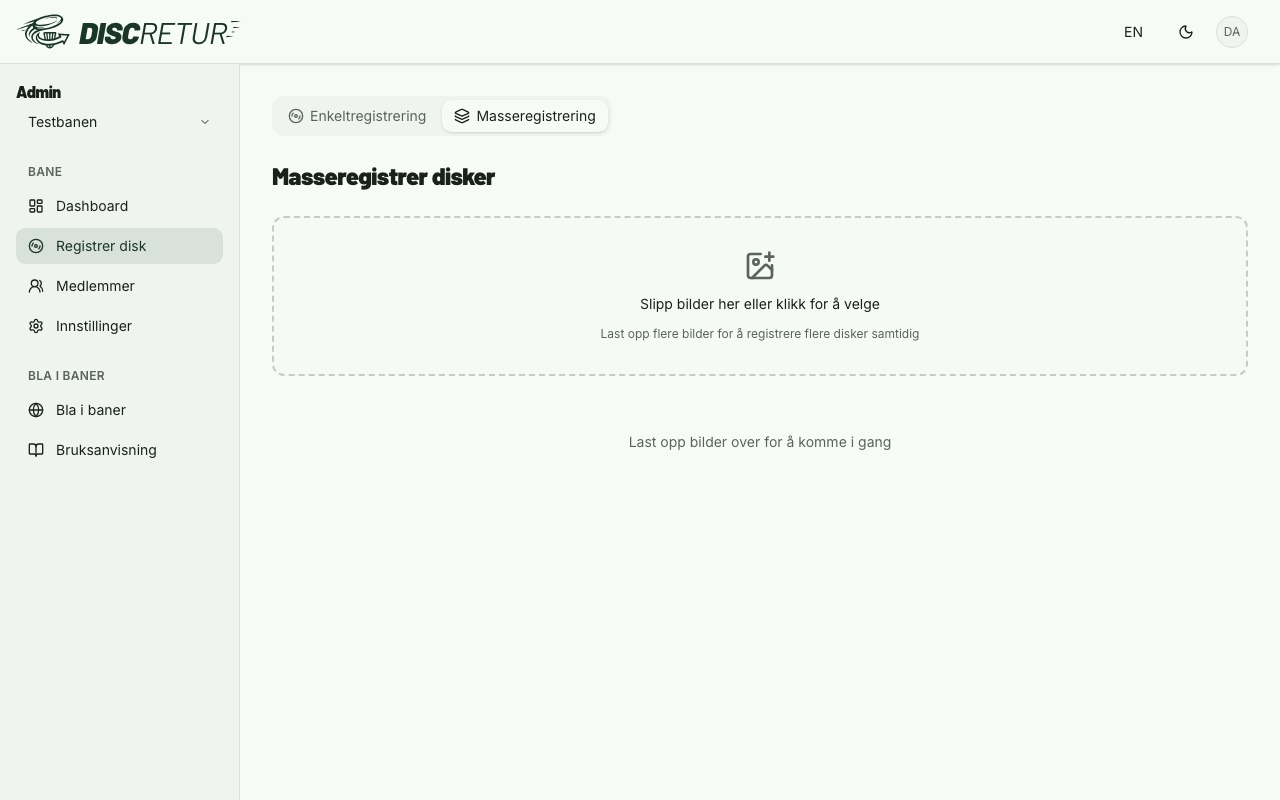
At most 30 photos per five minutes. For a full crate, work in batches — past the limit the uploader stops, and you're told how many photos didn't get through.
The public list is one load behind. The course page everyone can see is stored for a few minutes, so it's quick for a player standing on the course with their phone in hand. If you register a disc and open the public page straight away, you may get the list as it was. Reload, and the disc is there. Your own dashboard always shows what's registered.
Dashboard
The tabs split discs by where they are in the process: Active, Claimed, Picked up, Donated / Expired and Archived.
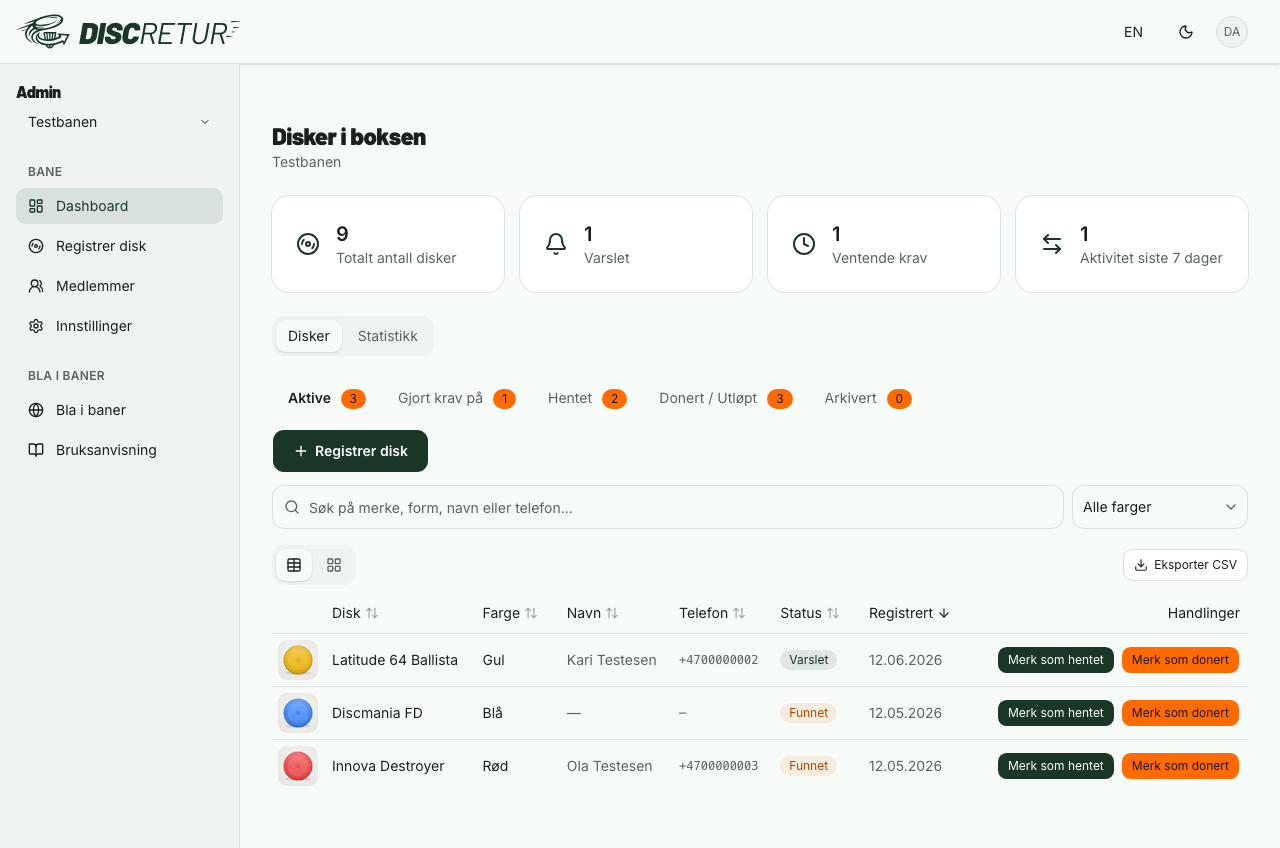
You can filter by status and colour, search by brand, mold, name or phone, export to CSV, and view statistics with leaderboards.
An expired disc that you pass on can be marked donated from the Donated / Expired tab. It then counts as donated in the statistics. Do that before archiving.
Archiving clears finished discs out of the working list. The status stays — it still records why the disc left circulation, and the statistics group by it. Un-archiving brings the disc back into the list.
Statistics
The Statistics tab holds leaderboards for which brands and molds are most often registered, collected and donated — and a wall of honour for the users who have donated the most discs.
The leaderboards fold spellings together, so "White Raven", "white raven" and "white Raven" are one mold with three discs rather than three molds with one each. If someone types just "Unknown", "x" or a disc type like "Midrange" into the mold field, it is kept off the leaderboard — the disc still counts in every total and in the charts, but the list is there to answer which molds turn up.
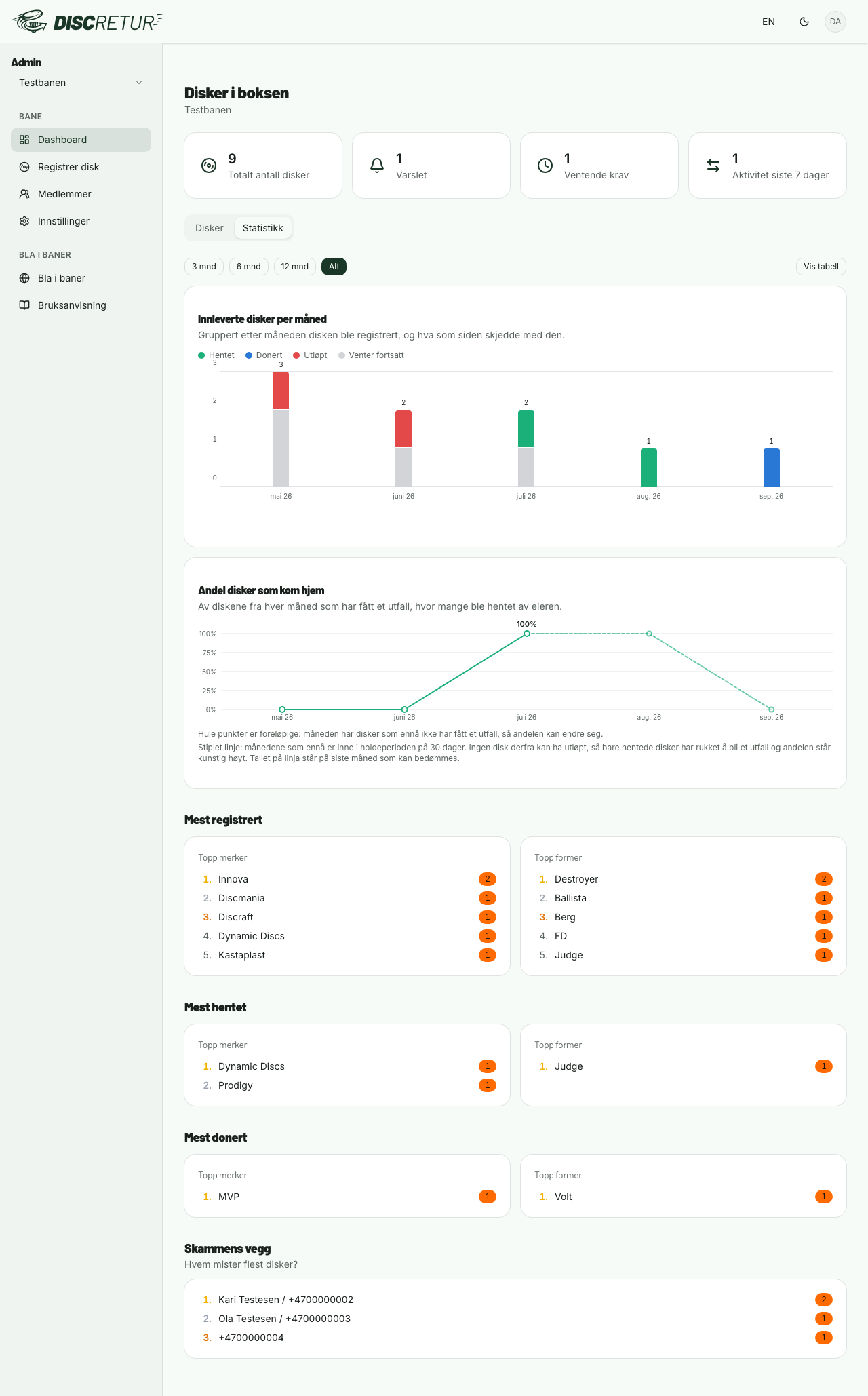
The cards at the top of the dashboard give the overview: total discs, how many are notified, pending claims, and activity over the last seven days.
How many make it home
At the top of the tab are two charts showing how things have moved over time.
The first is Discs handed in per month, split by what happened to them afterwards: collected, donated, expired, or still waiting. The second is Share of discs that made it home — of each month's discs that have reached an outcome, how many the owner actually collected.
Three things are worth understanding:
- The months are registration months, not collection months. A disc handed in during June and collected in August belongs to June. That is what makes "we got back 78% of what came in during June" a sentence that stays true.
- Hollow points are provisional. The month still has discs waiting, so the share can move. A recent month is almost always hollow.
- A dashed line means "too early to say". A disc can be collected from day one, but it cannot expire before the holding period is up. The most recent months have therefore only had time for the one outcome, and their share sits artificially high — often at 100%. That stretch of the line is dashed, and the number on the line marks the last month that can actually be judged.
Read that last one for what it is: a month showing 100% with discs still waiting is not telling you everything went home. It is telling you nothing has expired yet. Set the Holding period under Settings — it decides both when discs expire and how long a month stays dashed.
If you donate discs early, they count the same way an expiry does: a donation is also "did not make it back to the owner". A course that clears the shelf before the holding period is up will therefore look worse than one that waits.
You pick the range at the top, and Show table gives you the same numbers as text, ready to paste into an annual-meeting report. In the table, * means the month still has discs waiting, and † that it cannot be judged yet.
Notifications
First contact
How your course makes first contact is controlled by the SMS setting. With it off, email goes out. With it on, an SMS goes to the phone number on the disc — plus an email as well, if you've chosen that.
Follow-ups
Reminders and later messages go out on the channel the person was actually reached on, not on the course setting. If someone was first contacted by email, the conversation continues there even if the course has SMS enabled. If the SMS came back undelivered, follow-ups fall back to email — there's no point sending more messages into the same void.
The SMS pills in the list
Next to the status sits a pill saying what we know about the last SMS:
| Pill | Meaning |
|---|---|
| no pill | No SMS has been sent about this disc |
| SMS sent | Sent and accepted, but the outcome is not known yet |
| SMS delivered | Reached the number on the disc |
| SMS failed | Did not arrive. Hover the pill for the reason |
The receipt only arrives the next day. Delivery reports are collected by the nightly job, so anything you register today reads as SMS sent until that job has run. The absence of SMS failed therefore does not mean the message arrived — it may equally mean we don't know yet.
Email has no equivalent tracking inside the app.
Reminders
Reminders are sent by a nightly job, and only while the disc is Notified. As soon as it's picked up, donated or expired, they stop.
- First reminder — days after the first notification (default 14).
- Final reminder — days before the disc expires (default 7). Requires a holding period to be set.
Weekly summary
On Monday morning each of you gets an email with what is waiting at the course: discs on the shelf, claims that need an answer, what runs out of time this week, and what was registered and collected last week.
It is only sent when there is actually something to say. A quiet week produces no email, so an empty inbox means the queue is in order.
If you would rather not have it, turn it off under Profile. That applies to you alone, not to the others at your course.
Sending manually
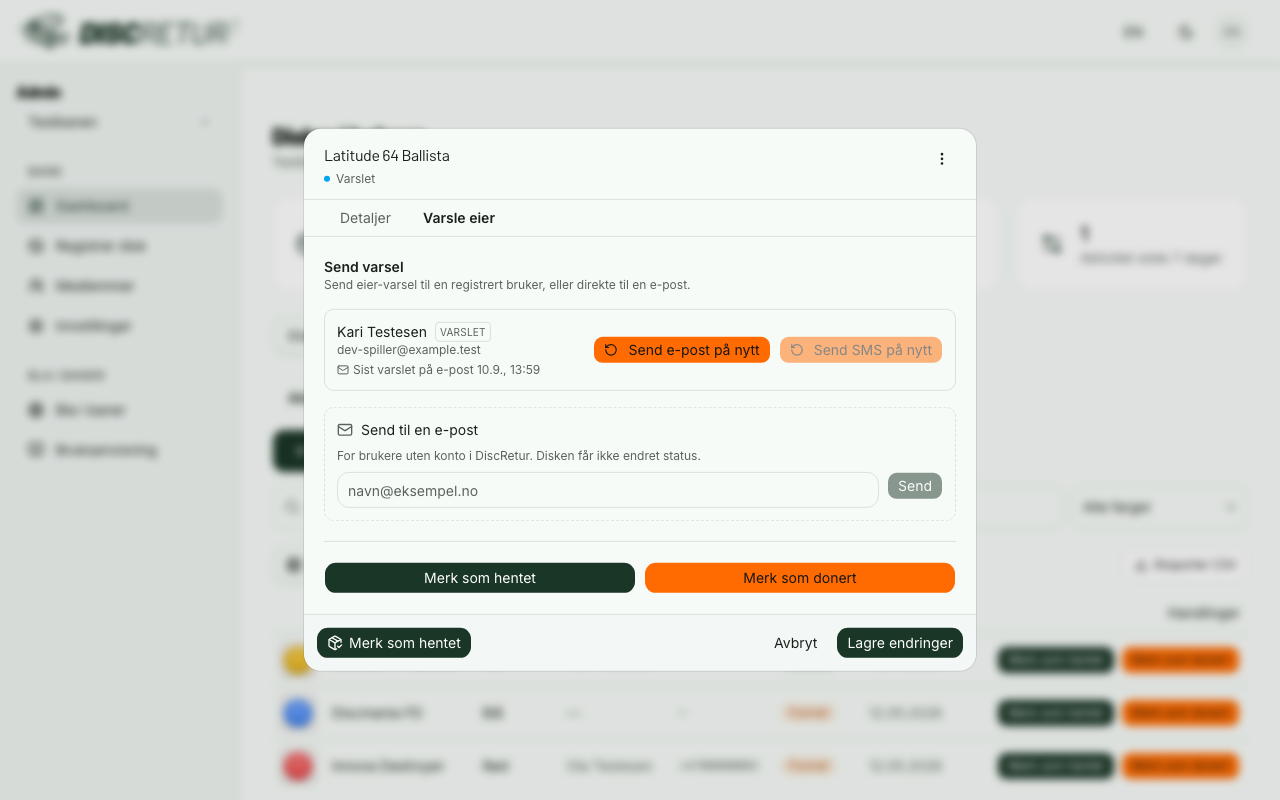
The edit dialog has a Send notification panel. Use it when an owner says they never heard anything, or when you've got contact details some other way — you can send to any email address, including someone without an account. Sending manually doesn't change the status and doesn't touch the reminder schedule.
Someone thinks a disc is theirs
A logged-in player can flag a disc as theirs. If the name and phone match well enough, the disc goes straight to Claimed. On a weaker match it stays a suggestion, and you'll see an amber pill with their name in the list.
Open the disc and the banner at the top lets you approve or reject:
- Approve sets the disc to Claimed with that person as the owner.
- Reject clears the suggestion. The disc keeps its status, and someone can suggest again.
A disc that's been claimed but never collected gets nudged after a while, and the claim can lapse — so it doesn't sit invisible to everyone else.
Statuses
| Status | Meaning |
|---|---|
| Found | Registered. No user is linked to it — see the note below |
| Notified | Owner has been notified — awaiting a reply |
| Claimed | Someone confirmed the disc is theirs |
| Picked up | Collected at the course |
| Donated | Never collected, passed on |
| Expired | The holding period ran out. Set automatically by the nightly job. If you pass the disc on, mark it donated so it counts in the statistics |
Found does not mean nobody was told. The status moves to Notified only when the phone number matches a registered user, because it is the user that gets linked to the disc. If the course has SMS on and there is a number written on the disc, the SMS goes out regardless — including to a number that belongs to no account. The disc then sits at Found with an SMS sent pill beside it, and the owner has been messaged.
And the other way round: Notified means we sent something, not that it arrived. The outcome is on the SMS pill.
Course settings
Course admins only. Everything here shapes what the owner sees in the notification, and how long you hold discs.
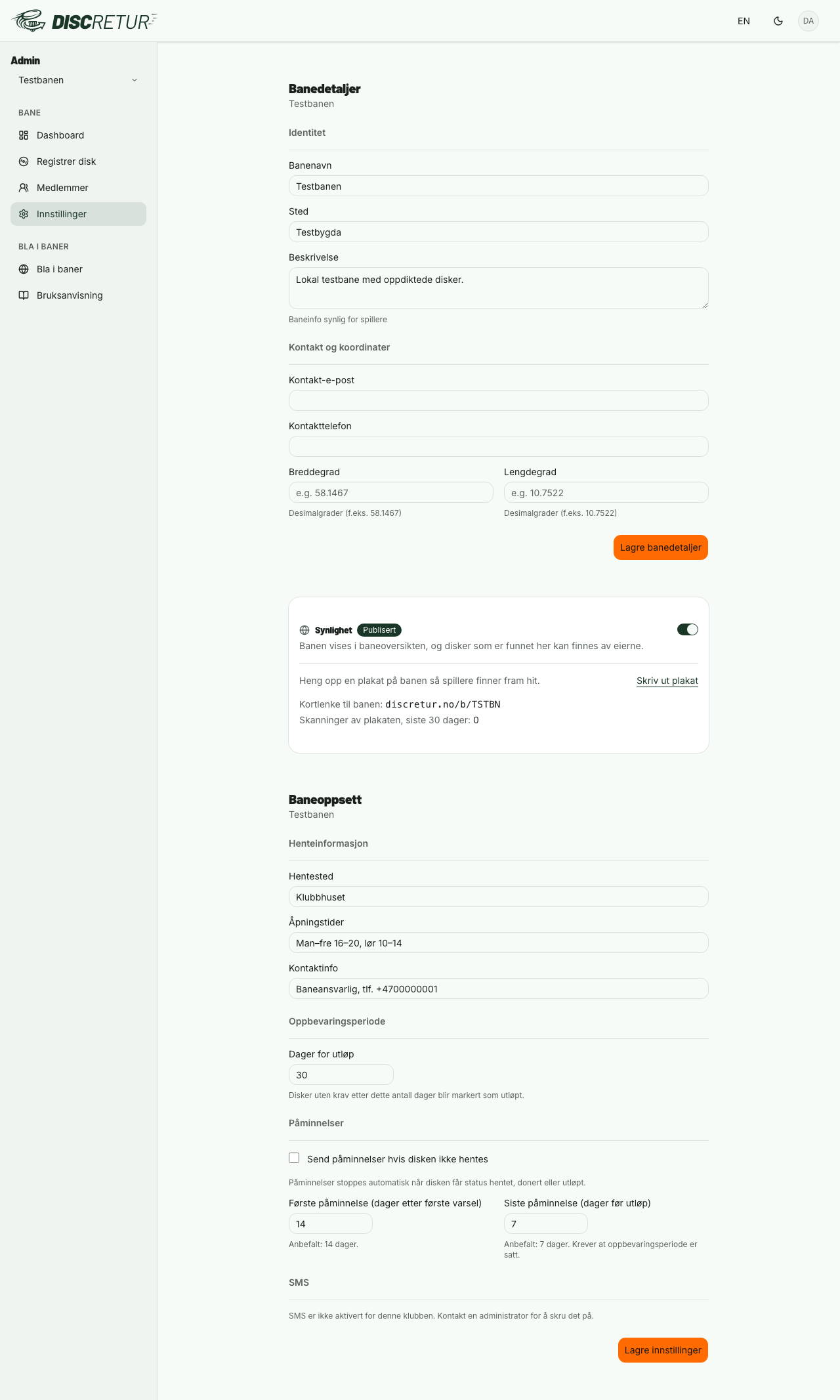
- Pickup location — where the owner should turn up.
- Opening hours — when somebody is actually there.
- Contact details — the phone or email shown in the notification.
- Holding period — days before an uncollected disc expires. Set it. Without it discs stay active indefinitely, and the final reminder can't be calculated.
- Reminders — on/off, plus the two intervals above.
- SMS — whether first contact goes by SMS.
- Visibility — a hidden course doesn't appear in the public course list. Links to individual discs keep working, so notifications you've already sent don't dead-end.
Members
Course admins only. Shows who has set your course as their home course, and lets you make them a moderator. You can also invite someone by email — an invitation grants nothing until it's accepted by an account with the same, verified email address.
Signage
Under print you'll find a poster with a QR code and a short address that can be typed in. Put it by the basket or in the clubhouse so people can find the course's disc list without hunting for it. The poster requires the course to be visible — a QR code pointing at a hidden course would dead-end.
What the owner sees
Worth knowing when someone calls and asks:
The owner gets a notification with a photo of the disc, where it was found, and the pickup location, opening hours and contact details if you've filled them in. From there they contact you directly — DiscRetur doesn't send messages on your behalf, and doesn't arrange the handover.
Questions?
Email us at the address in the footer.