Lost a disc?
This page explains how to find a disc you have lost, and what happens along the way. If you run a course, the guide for courses is the one you want.
In short
Courses using DiscRetur register the discs they find, with a photo. If your phone number is written on the disc and it matches your account, you're notified automatically. Otherwise you can search yourself — the lists are open, and you need no account to look.
Find your disc
Go to Browse courses and pick the course where you lost it. You'll see every disc handed in there, with a photo.
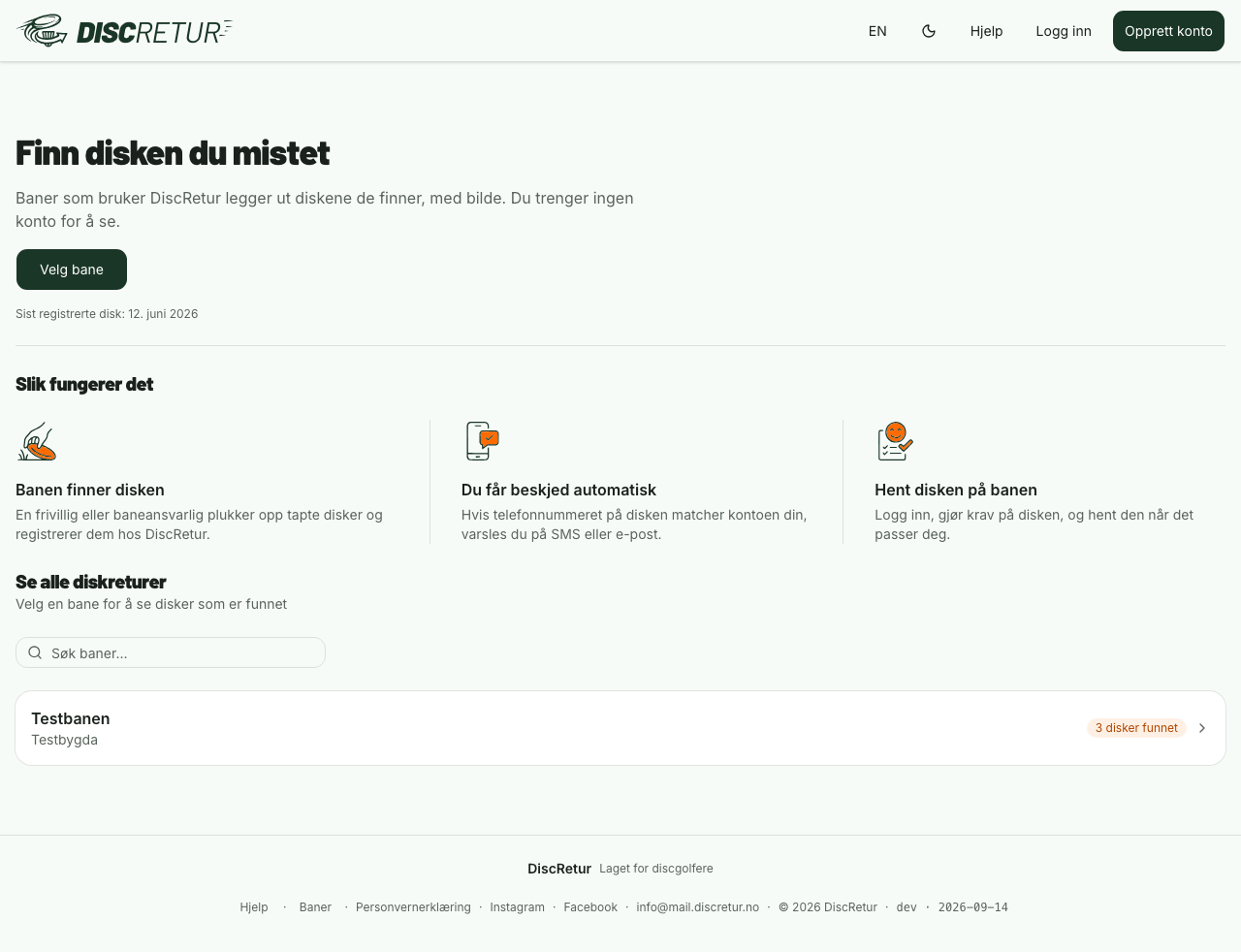
Inside a course you get the search and the filters:
- Search by brand or mold — "Destroyer", "Latitude 64".
- Filter by colour if you remember the colour better than the model.
- Each card shows a partly hidden phone number, like
Tlf: 92••••31. That's enough for you to recognise your own without your number sitting in the open.
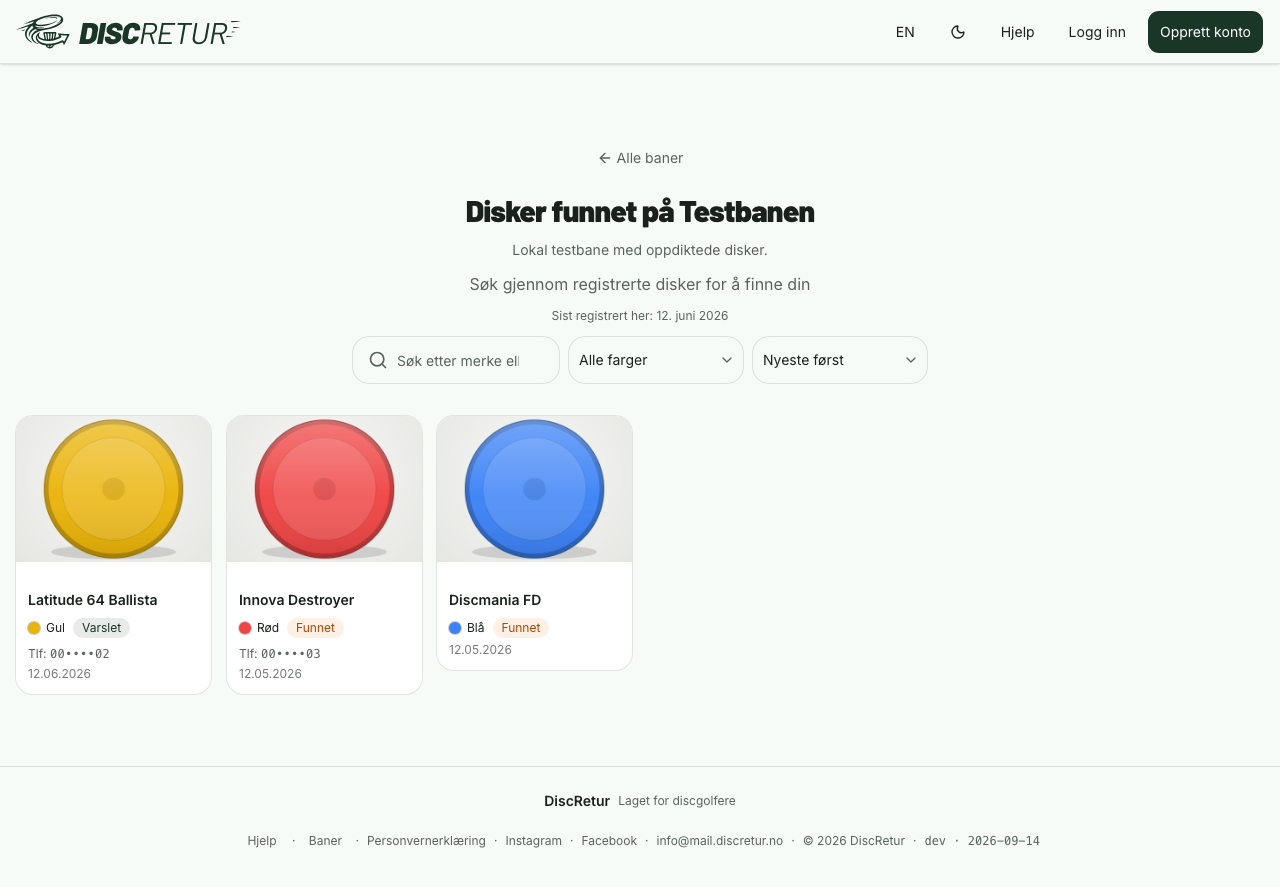
Open a disc, see it isn't yours, and Previous and Next at the top of the page take you on to the one beside it — no going back to the list in between. Share disc is there too, for sending it to a clubmate to ask whether it's theirs.
If it isn't there, it's worth looking again in a few days. Discs come in continuously.
How you get notified
We match the phone number written on the disc against the number on your account. If they're the same, you're notified — by SMS or email, depending on how the course is set up.
Two things follow from that:
- The number in your profile has to be right. If it's wrong or missing, the match can't find you, and the disc sits there even though it has been found.
- The number has to be on the disc. Without it, a found disc is just plastic on a shelf. It's the cheapest insurance there is — see the bottom of this page.
Create an account
You need no account to browse the lists, but you need one to claim a disc — and to be notified automatically.
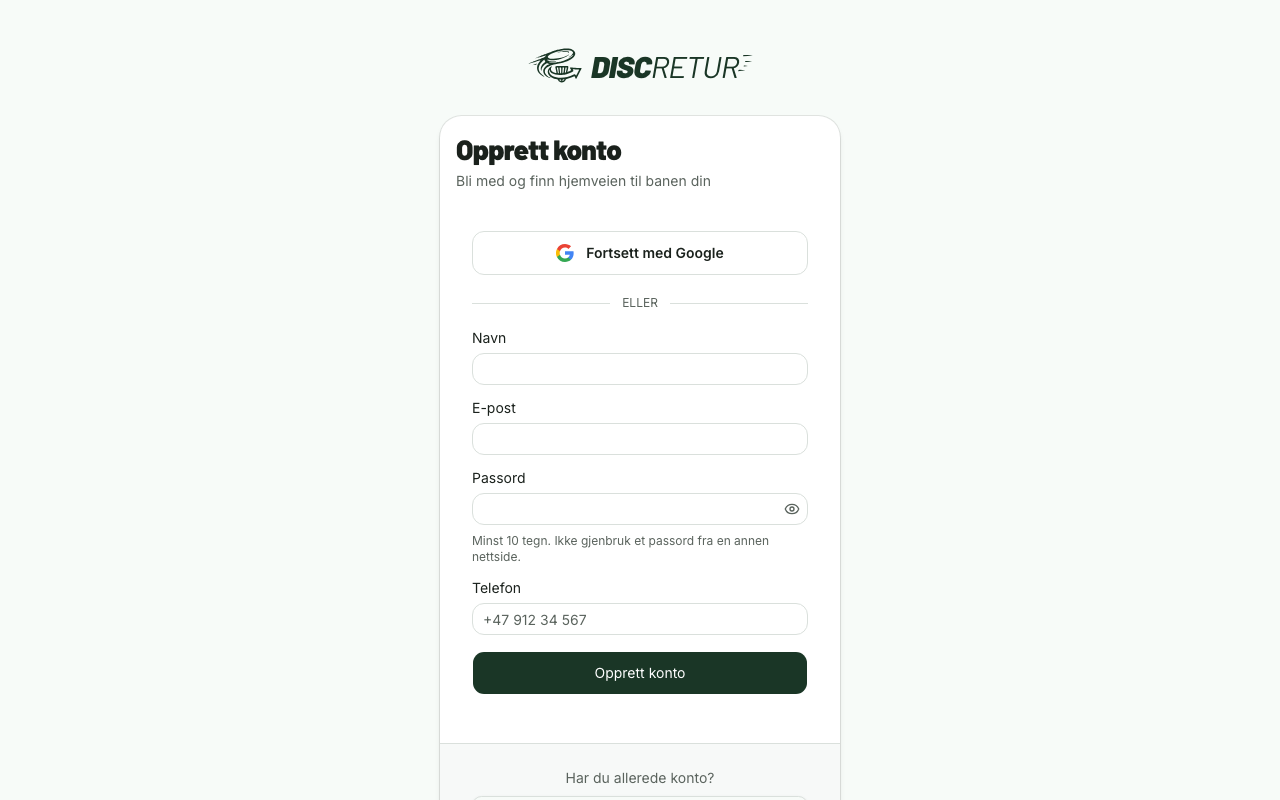
Sign up under Log in → Create account. Give your name, email and a password.
Continue with Google
Where it is set up, a Continue with Google button sits at the top of both the login and the signup page. It does both jobs: with no account you get one, and with an existing account on the same email address, Google is linked to that account.
Three things are worth knowing:
- Your password is left alone. If you already had an account with a password, it still works afterwards. You choose which way to sign in next time.
- Your email address is confirmed straight away. Google has already confirmed it, so you can skip hunting for the confirmation link.
- You still have to fill in your phone number. Google does not send it, and without it we match no discs. While it is missing, an amber banner at the top of the page links straight to your profile.
If you have only ever signed in with Google and want a password as well, use Forgot password on the login page. That sets a password without asking for an old one, and both ways in work afterwards.
The phone number is optional, but fill it in. It's the number we match against when a disc with a phone number on its surface is registered. Without it there is nothing to match, and you have to search manually.
After signing up you get a confirmation link by email. Press it to activate the account. Until you have confirmed, a banner at the top of the page reminds you.
Your discs
If you're signed in and have discs waiting, they sit at the top of the course overview under Your discs, with the course they were found at. That saves you remembering which course it was.
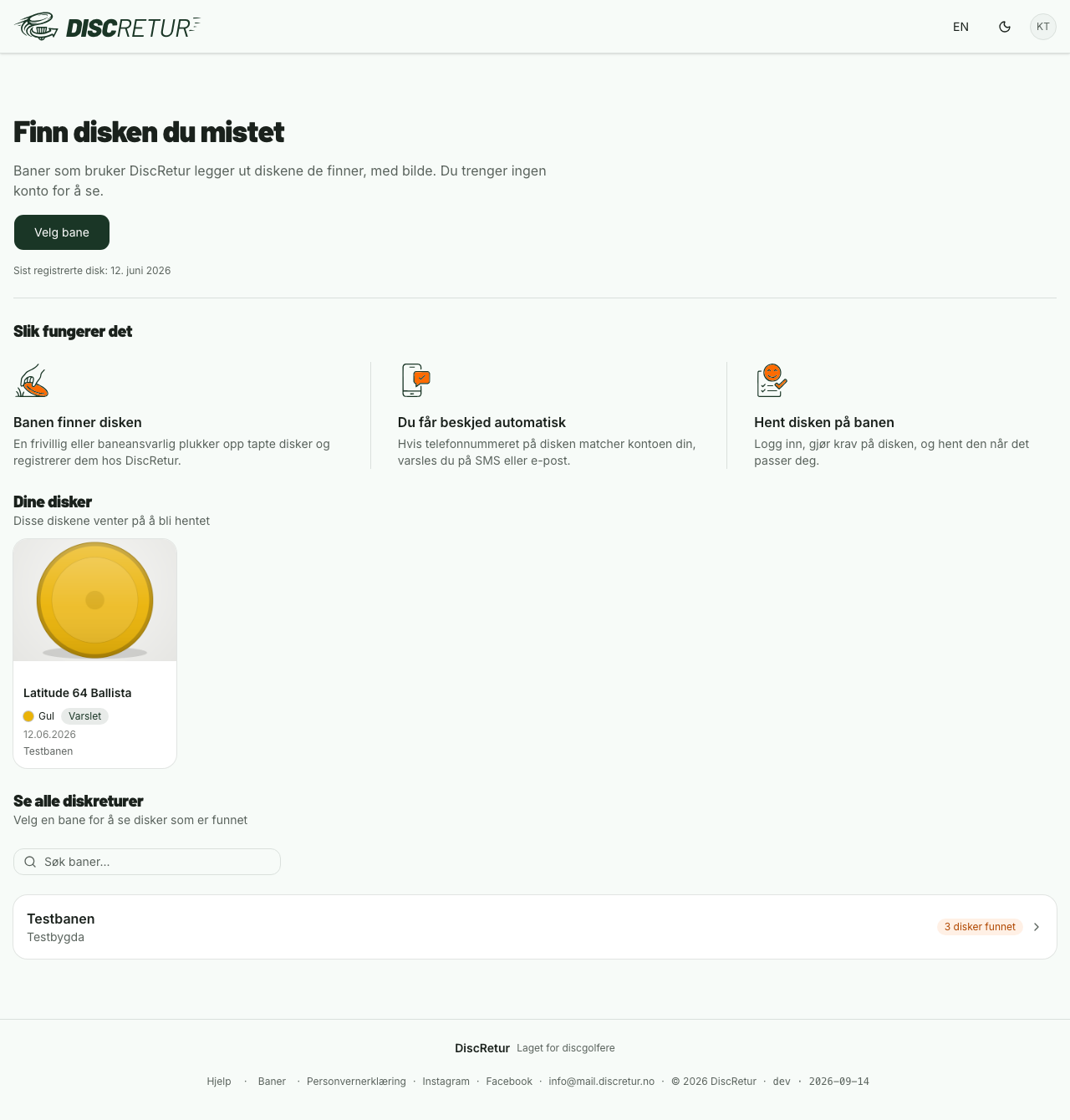
Press a disc to see its details and collection information.
Your profile
Under Profile you can:
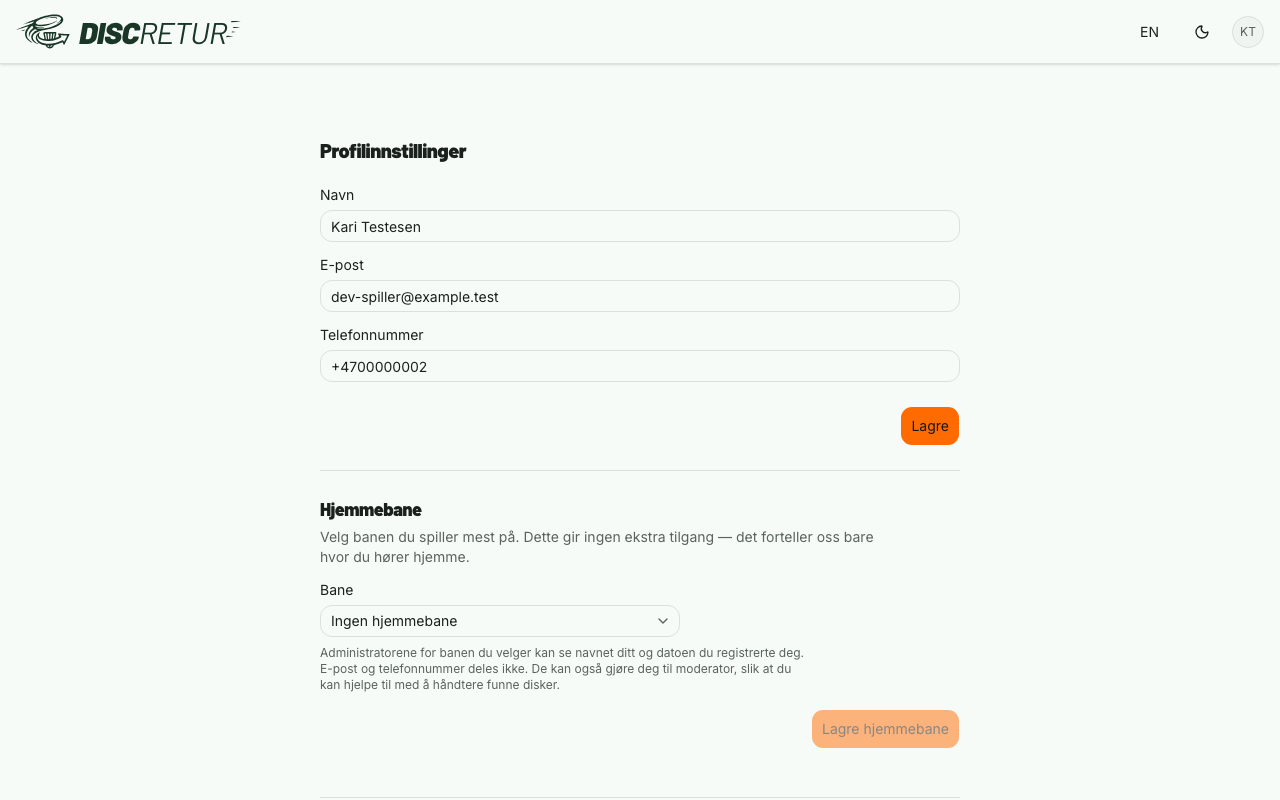
- change your name, email and phone number
- switch language between Norwegian and English
- delete your account
Deletion is soft. There's a grace period in which you can change your mind. After it, your personal data is deleted for good, while the discs you registered are kept anonymously — otherwise a course's collection statistics would be wrecked by one person leaving.
Forgotten password?
Use Forgot password on the login page. You get an email with a link valid for one hour.
Resetting the password also signs out other devices — but not immediately. Their sessions are rejected the next time they're checked against the server, and that can take up to half an hour. If you have reason to think someone else is in your account, it's worth knowing the window is that long.
Claim the disc
Sign in, open the disc, and press the button below the pickup details. If you are not signed in, a prompt to sign in sits where the buttons would be — browsing the lists needs no account, claiming does.
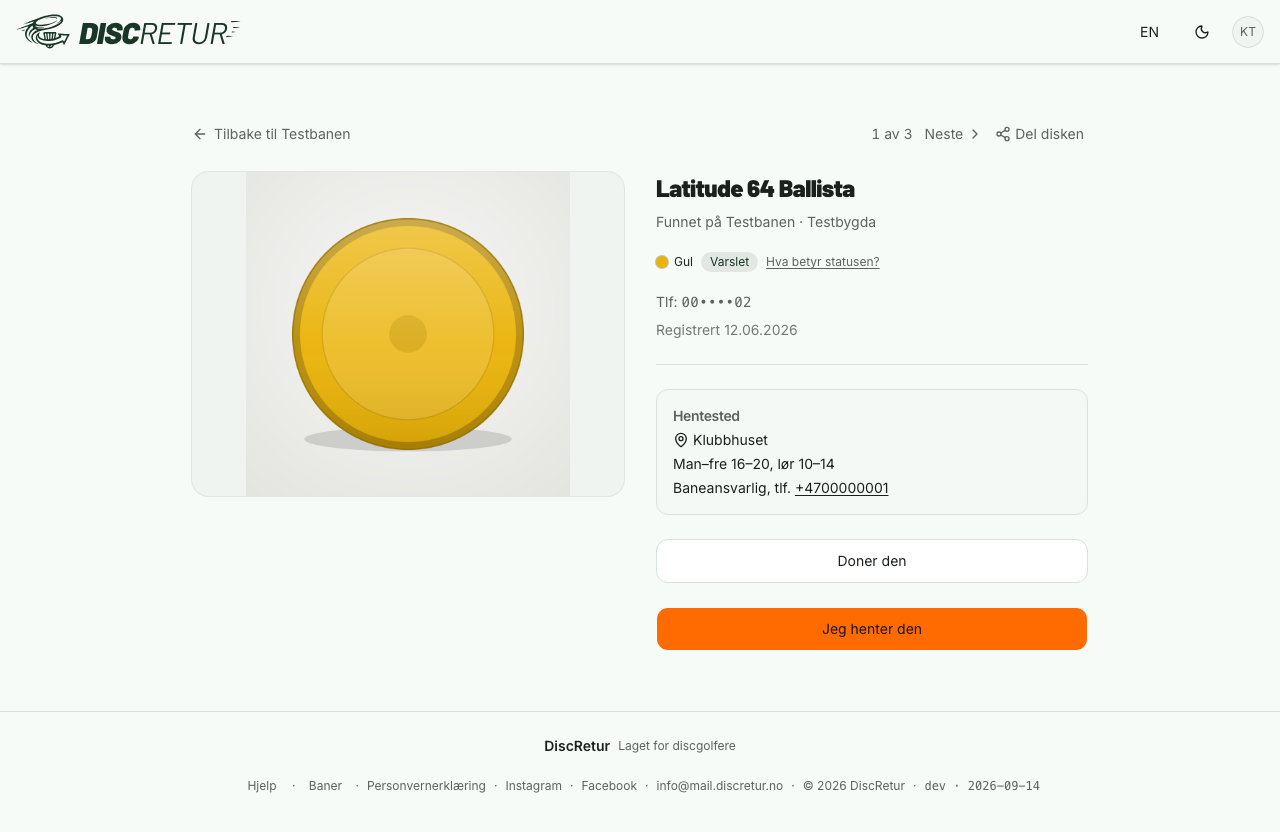
There is one button for claiming, and it goes by two names:
- I'll pick it up — when the number on the disc is the number in your profile. The disc is reserved for you right away, and you collect it at the course. Pickup location, opening hours and contact details are on the page.
- I think this is mine — when the number doesn't quite match. If your first name and the last digits are close enough, the disc is still reserved right away. Otherwise the request goes to the course admin, who responds, and the status updates once they've looked at it.
Alongside it you get Donate it if you don't need the disc. It only appears when the number on the disc is yours — it is your own disc you are giving away, after all. The course handles the rest.
DiscRetur does not arrange collection for you. We connect the disc to you and show you where it is; the rest of the contact is between you and the course.
The statuses, from your side
| Status | What it means for you |
|---|---|
| Found | Handed in and sitting at the course. Nobody has linked it to an account yet |
| Notified | The course has sent a message to the number on the disc |
| Claimed | Someone has said they're coming to collect it |
| Picked up | It has been collected |
| Donated | The owner gave it up, and the course passed it on |
| Expired | The holding period ran out without anyone collecting it |
A disc reading Found does not mean nobody tried to reach you. If your number is on it and the course sends SMS, the message has gone out — the status only moves to Notified when the number matches a registered account.
If nobody collects it
Each course sets a holding period. If it runs out with the disc uncollected, the disc goes up for second-hand sale.
The disc's page says which date that happens and how many days are left, directly above the claim button. If you were notified about the disc, you also get reminders before the deadline.
Mark your disc
What separates a disc you get back from one you don't is almost always a marker pen.
Write your name and phone number on the underside. Then the match happens automatically, and at courses with SMS you get a message the same evening the disc is registered. Do it on all of them, not just the ones you're fond of — it's rarely the ones you're fond of that disappear.
Questions?
Send us an email at the address in the footer.